From Design to Reality: 3D Printed Keychain Workflow
Follow this step-by-step guide to transform your creative ideas into physical 3D printed keychains. We'll cover everything from the initial design process to the final print.
Introduction
Creating a custom keychain is a rewarding journey. Whether you are making a personalized gift or branded merchandise, the process is straightforward and fun. Let's dive into the workflow!
Step 1: Setting up the Base
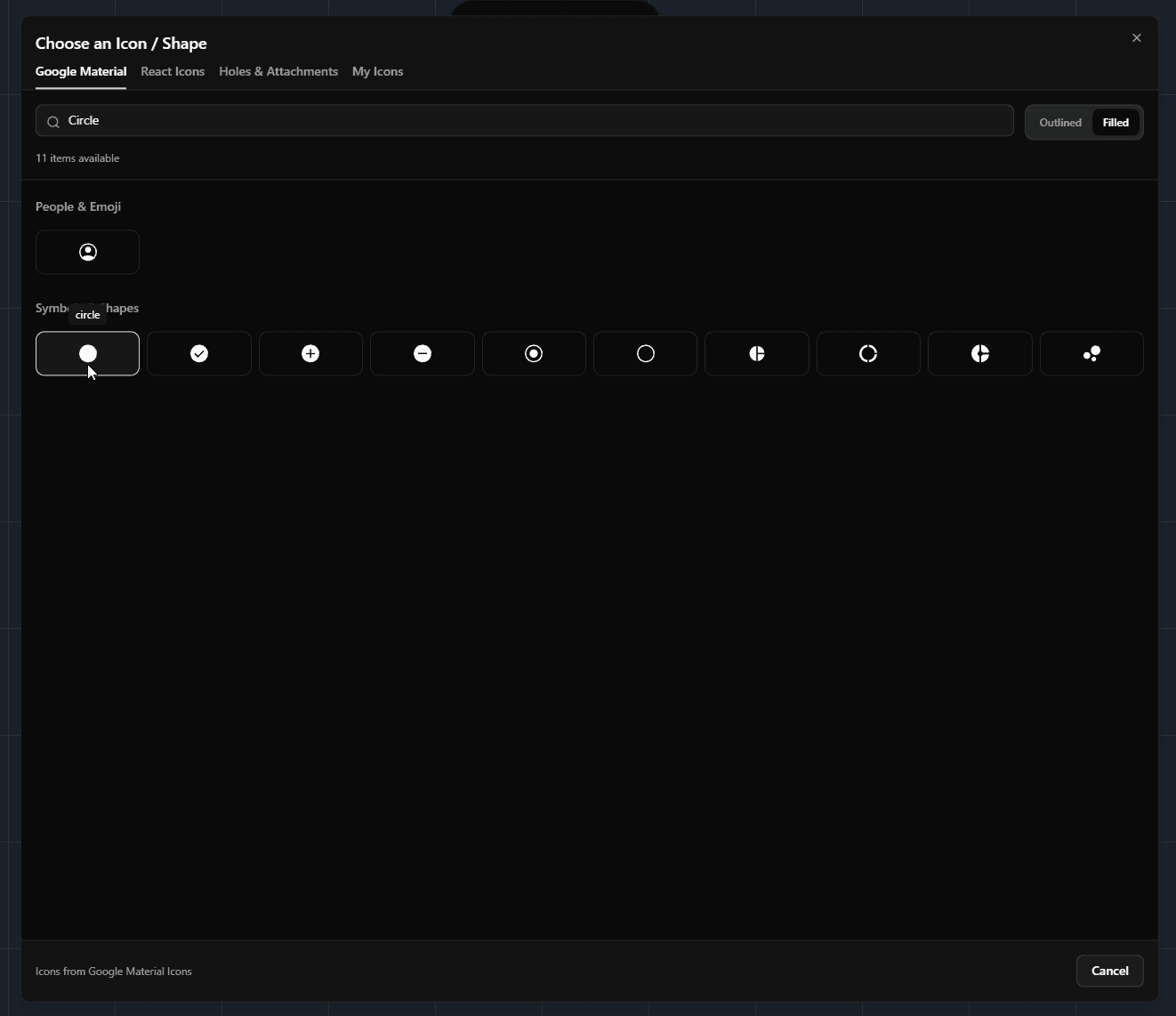
First, ensure you are in Base Mode. Click on the Add Icon Shape button to open the asset library.
Navigate to the Google Material tab. Here, select the Filled option and search for "circle". Once you find the circle icon, select it to automatically add it to your design as the base.
Step 2: Adding the Attachment Hole
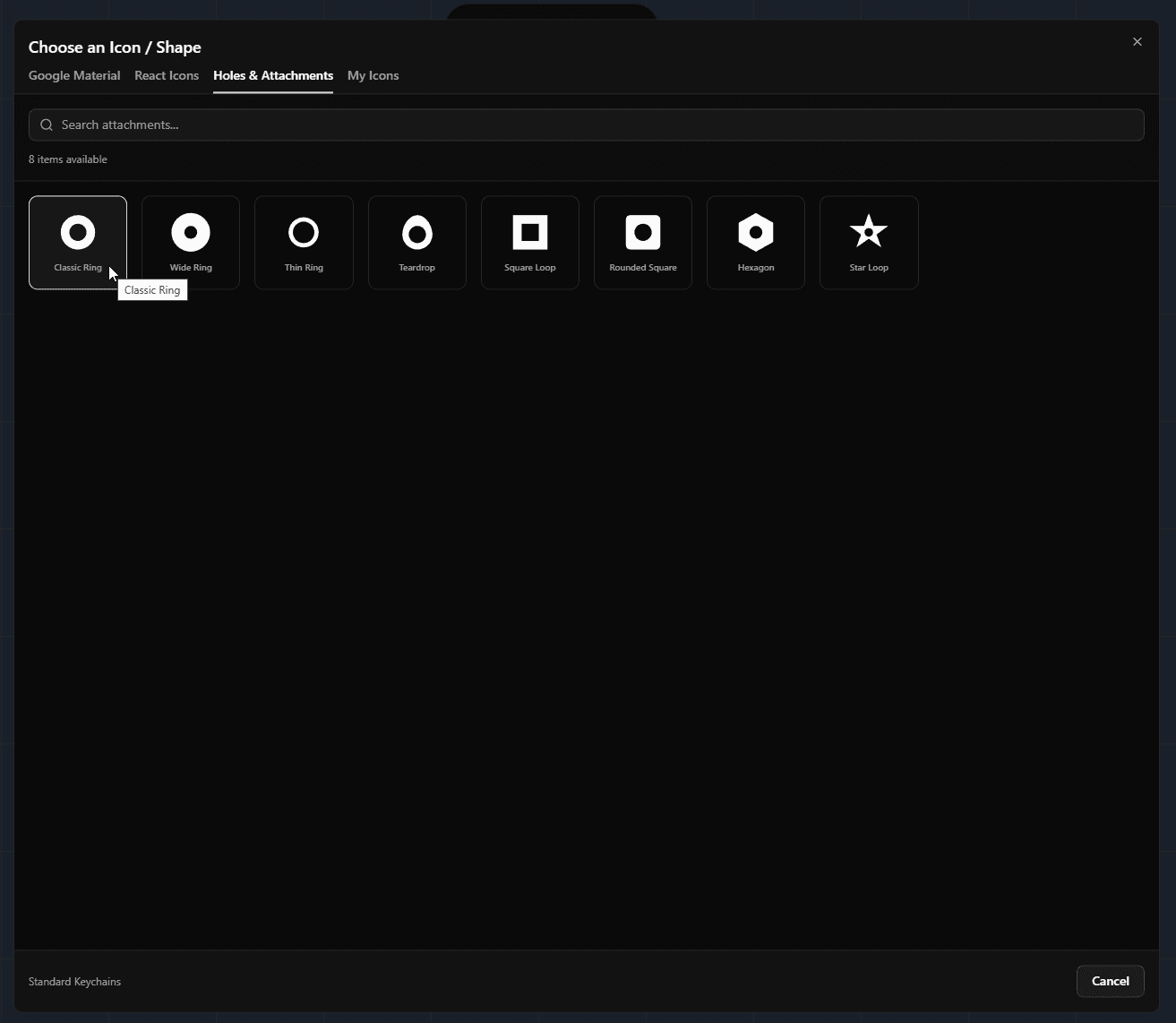
Every keychain needs a hole! Click the Add Icon Shape button again.
This time, switch to the Holes & Attachments tab. Locate and select the Classic Ring shape. This adds a standardized ring attachment to your design, ensuring it's ready for a keyring.
Step 3: Uploading Custom Design
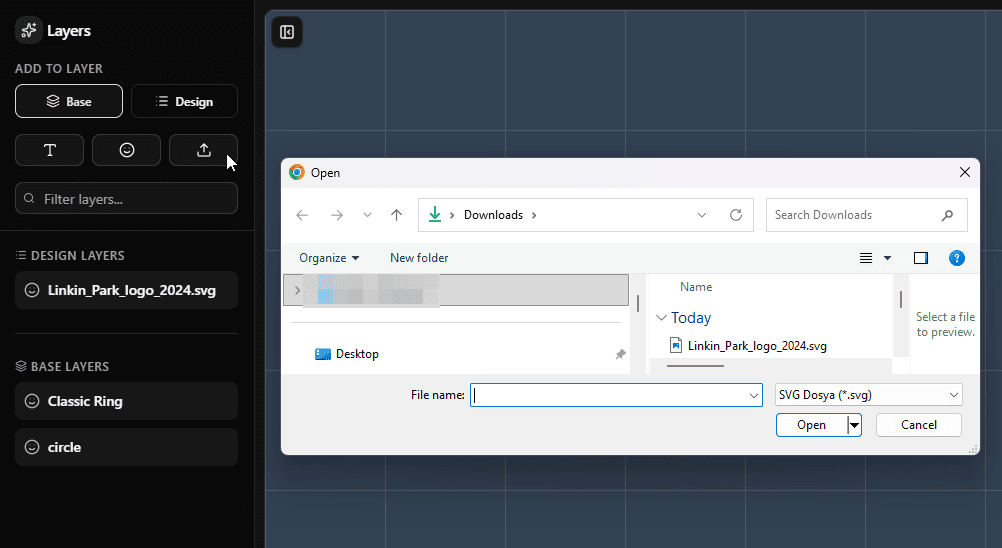
Now for the creative part. Switch to Design Mode.
Upload your favorite artist's logo or any custom design you have as an SVG file. The tool will process your SVG and place it onto the canvas.
Step 4: Placement & Alignment
With all elements on the canvas, it's time to refine the layout. Use the alignment tools to center your logo perfectly within the base. Adjust the position of the attachment ring to ensure it connects properly without interfering with the design.
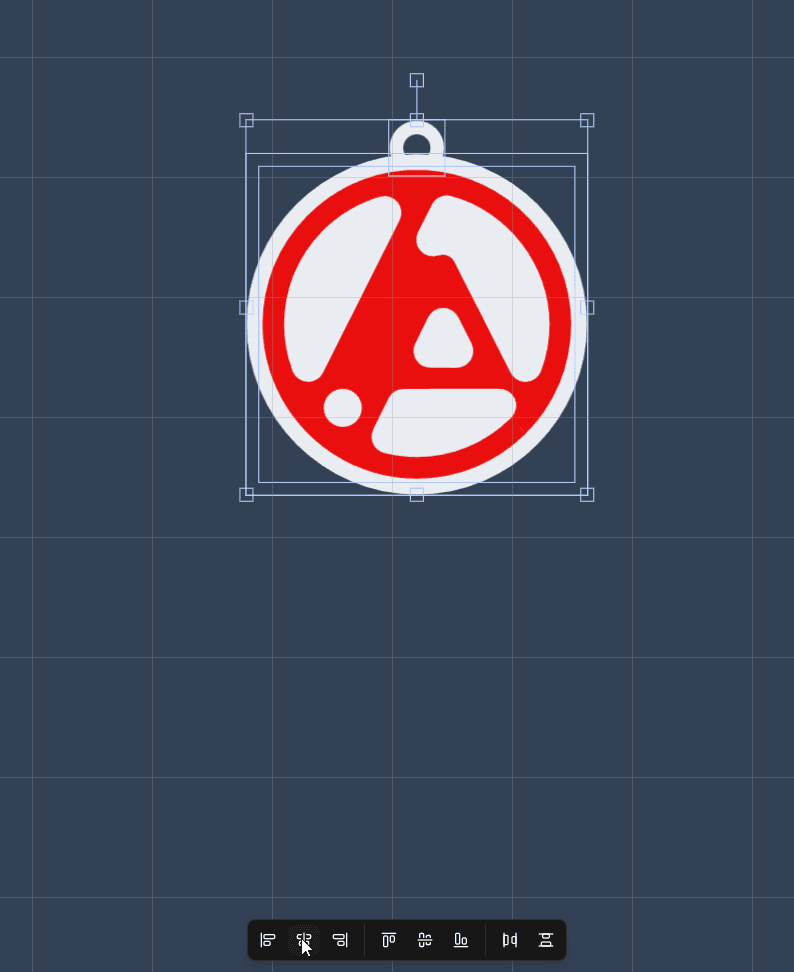
Step 5: Generate & Download
We are now ready to see the result. Click the Generate button to create a 3D preview of your keychain.
Inspect the 3D model. If you are happy with the result, click Download STL to save the file to your computer.
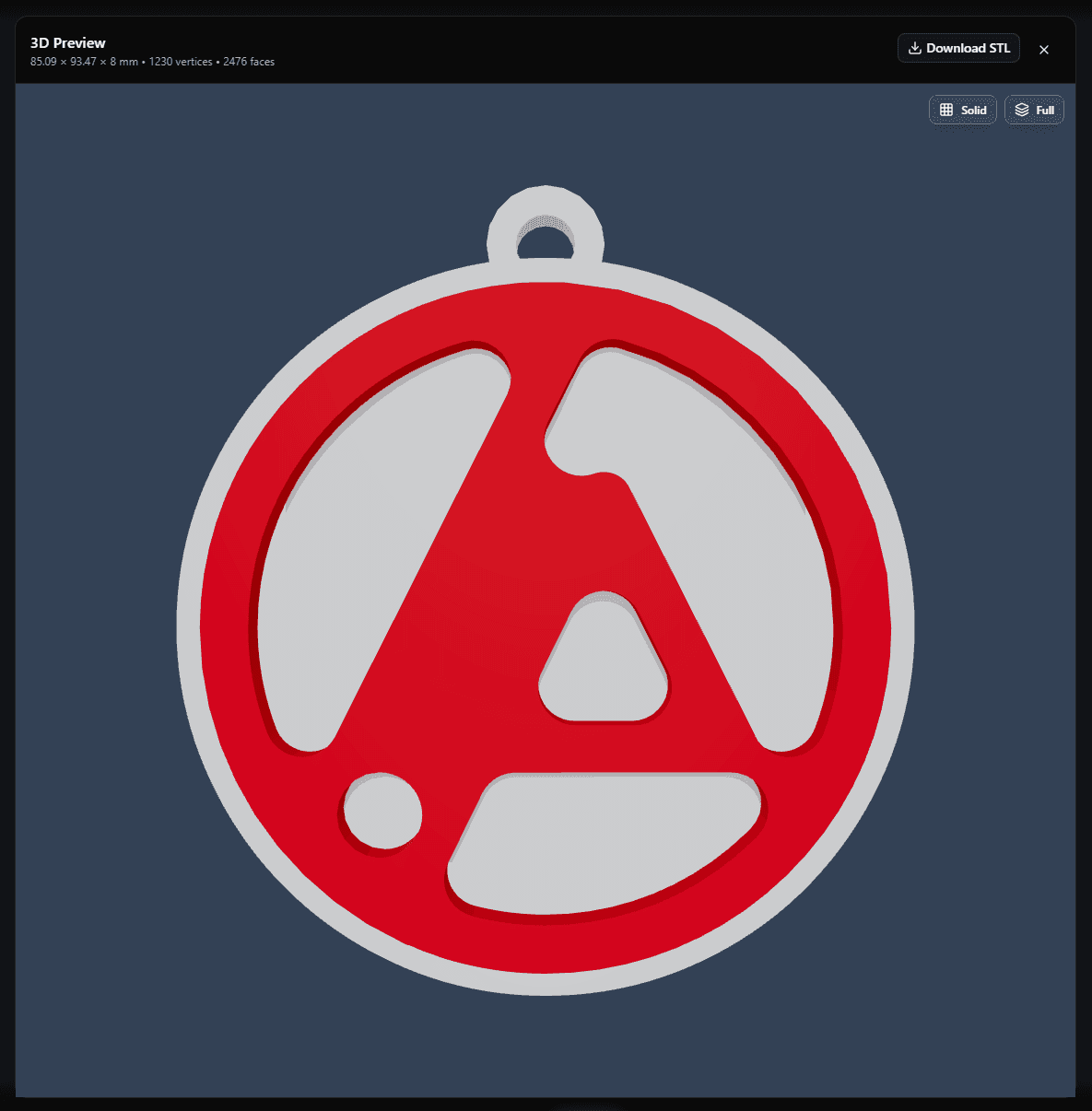
Step 6: Slicing for Print
Open your Slicer software (e.g., Bambu Lab - BambuStudio) and import the STL file you just downloaded.
Depending on your printer's capabilities, you can assign different colors to various parts of the model (base vs. logo) for a multi-color print.
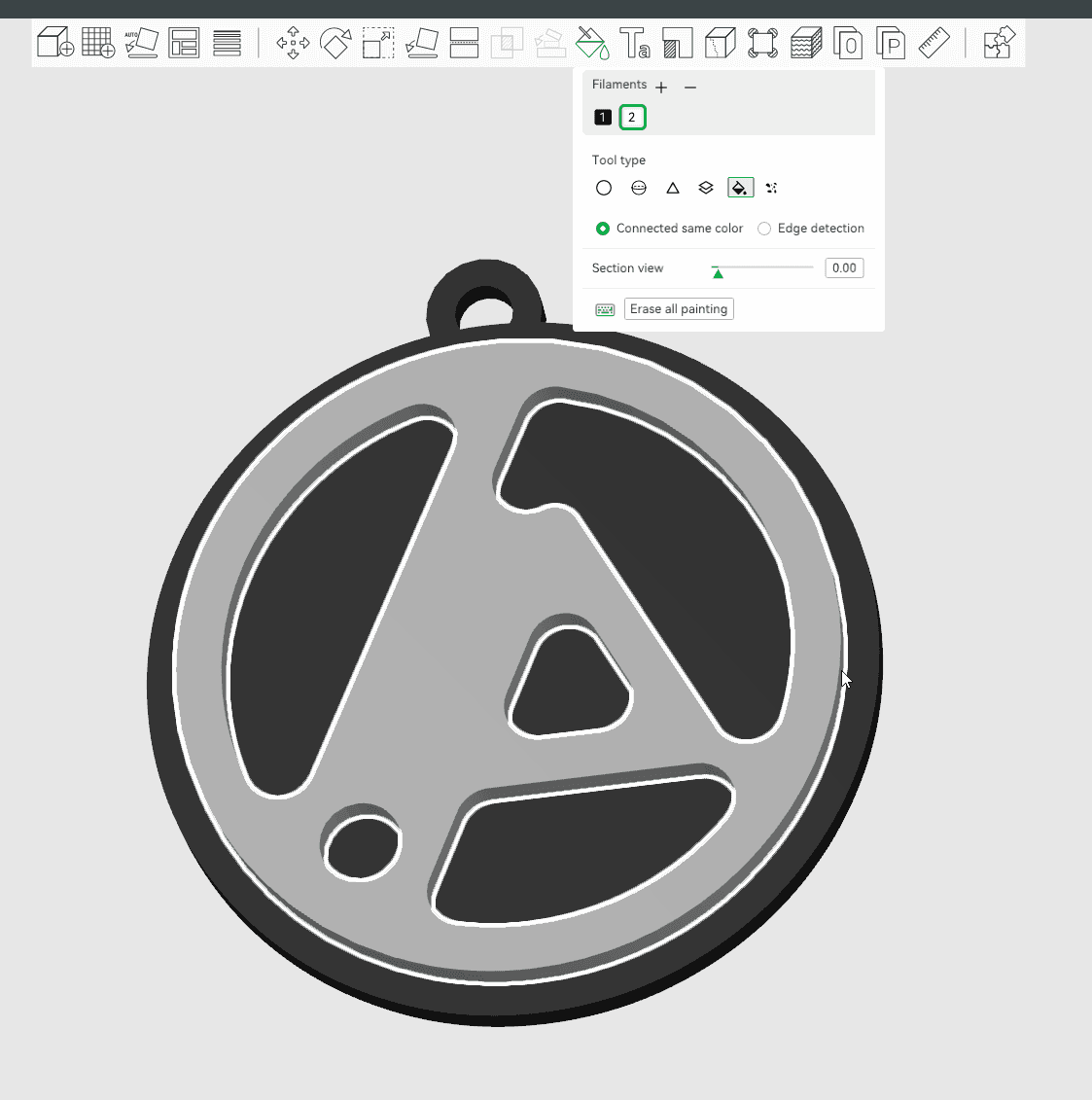
Step 7: The Result
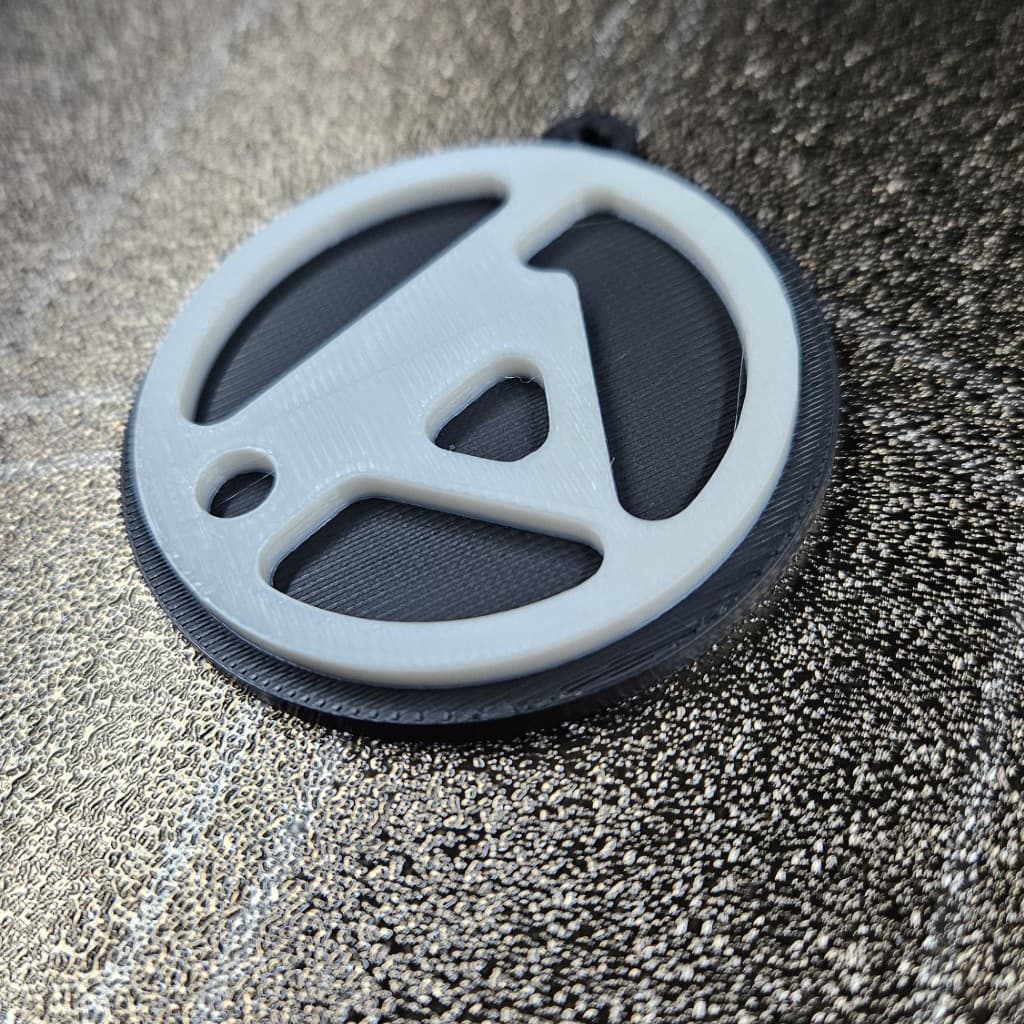
Slice the model and send it to your 3D printer. Watch as your digital design transforms into a real, physical object!
Happy printing! :)