How to Make a Spotify Keychain with a Scannable Code
This workflow shows how to build a Spotify-inspired keychain in minutes: start with Capsule Two, add a Spotify Code from a link or URI, arrange the icon and bars correctly, then export an STL for printing.
Before You Start
Open a new design and keep your Spotify link or Spotify URI ready. The built-in Spotify Code tool accepts either one, then generates the code bars and icon for you.
One important note: Spotify's official guidance says you should test codes at actual size before printing, keep the code in a clear rectangle with strong contrast, and avoid changing the code itself. Spotify also states that using Spotify Codes directly on products for sale can violate their terms unless you have the necessary permissions.
Review Spotify's best practices and terms before publishing or selling anything that includes a Spotify Code.
Step 1: Create the Base
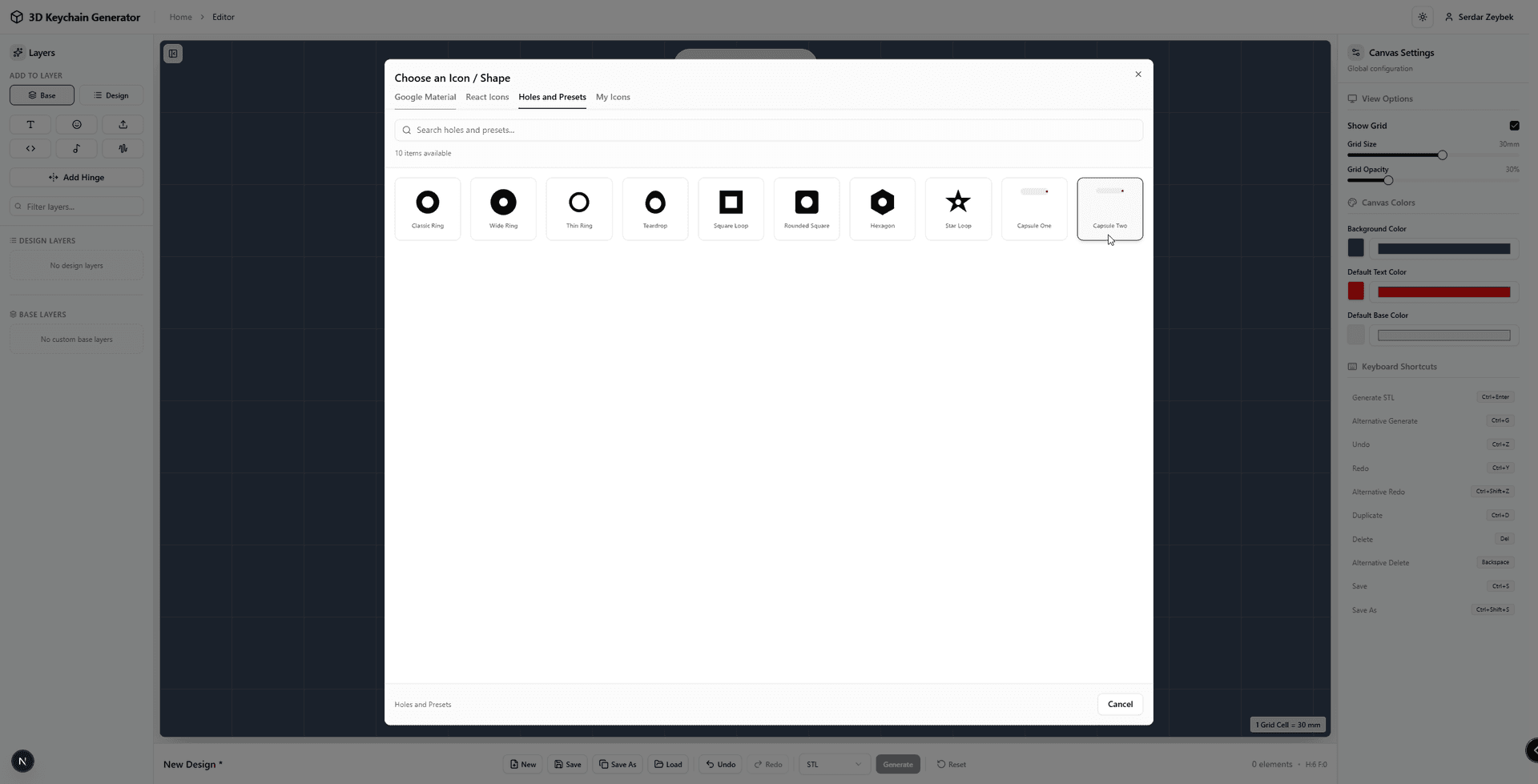
Start with New Design. In Base Mode, click Add Base from Icons / Shapes, open the Holes and Presets tab, and choose Capsule Two.
Capsule Two works well for Spotify-style layouts because it gives you a clean, wide body with the hole already aligned to one side.
Step 2: Generate the Spotify Code
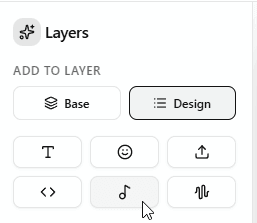
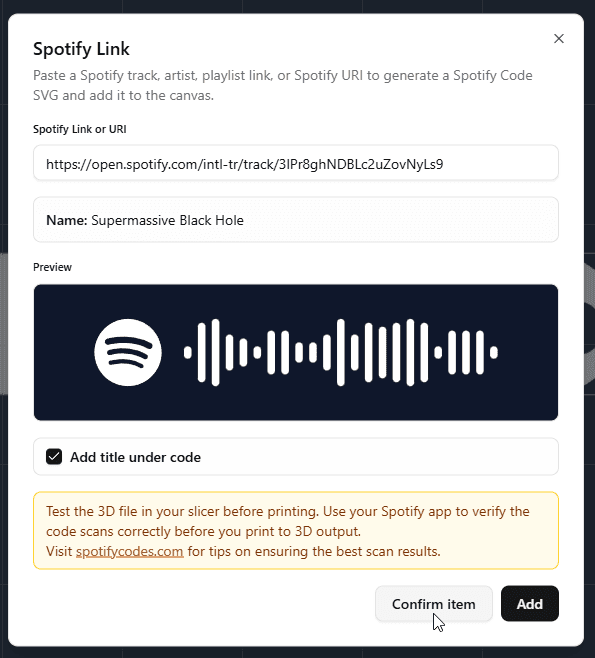
Switch to Design Mode and open the Spotify Code panel. Paste a Spotify link or URI, then click Confirm Item.
If the preview looks correct, click Add. If you want the song or playlist title to appear under the code, keep the title option enabled. If you want a cleaner minimal keychain, remove the checkbox before adding it.
Step 3: Place the Icon and Code Bars Carefully
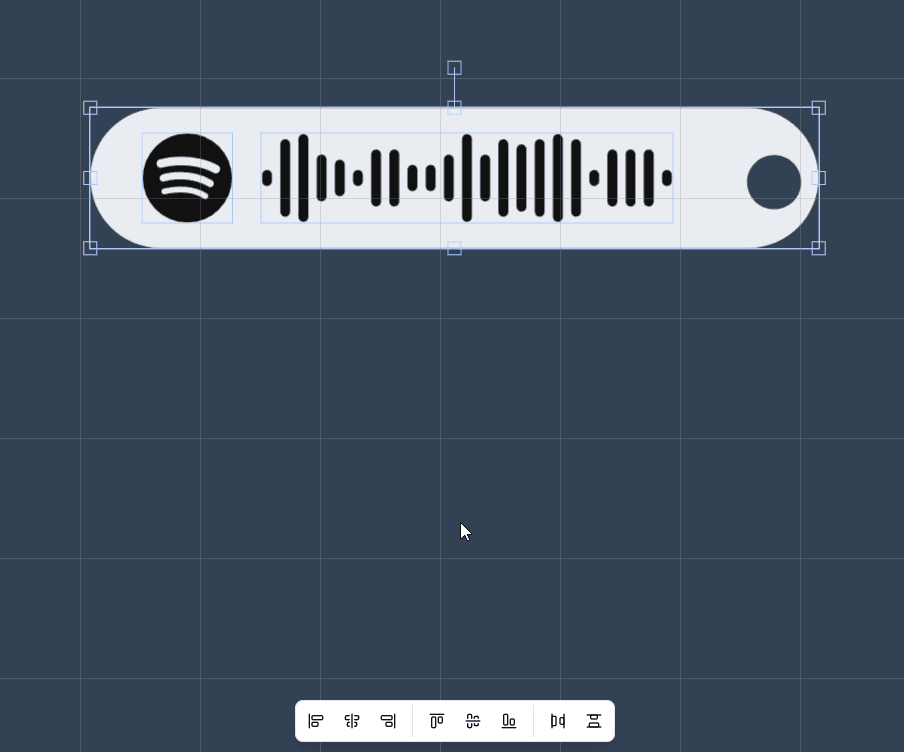
After adding the design, position the Spotify icon and the code bars so they sit comfortably inside the capsule shape. Placement matters here: do not crowd the bars against the edges, the hole, or other decorative elements.
Spotify's best-practice guidance is especially relevant for physical prints. Keep the code inside a distinct rectangle, maintain strong contrast between the bars and the background, and leave enough clear space that the mobile scanner can recognize the full code area. Always test at real size before committing to the final print.
Step 4: Choose Raised or Recessed Details
If you want an embedded look, select the Spotify icon and the song-code SVG parts and switch them to Recessed. This creates a carved-in appearance instead of raised geometry.
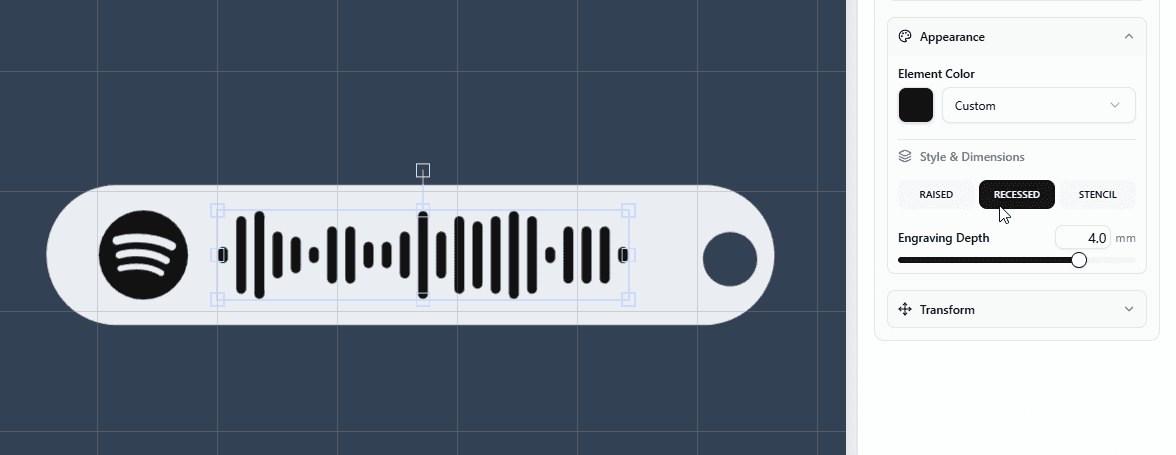
For the base layer, set the thickness to around 4 to 6 mm. That range is a good starting point for a keychain that feels solid without becoming unnecessarily heavy.
Step 5: Generate, Export, and Test
Click Generate, inspect the model, and download the STL when everything looks right.
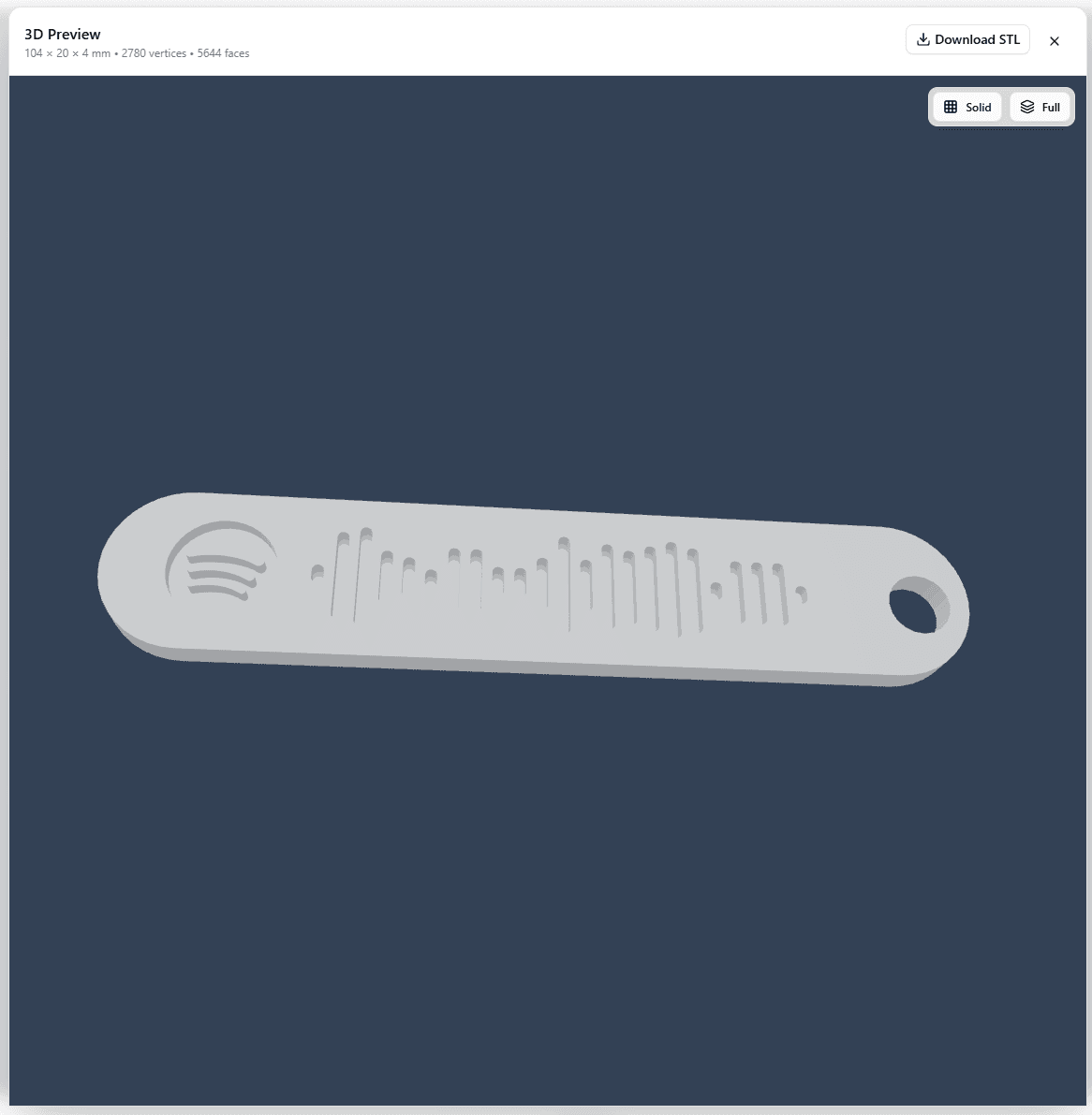
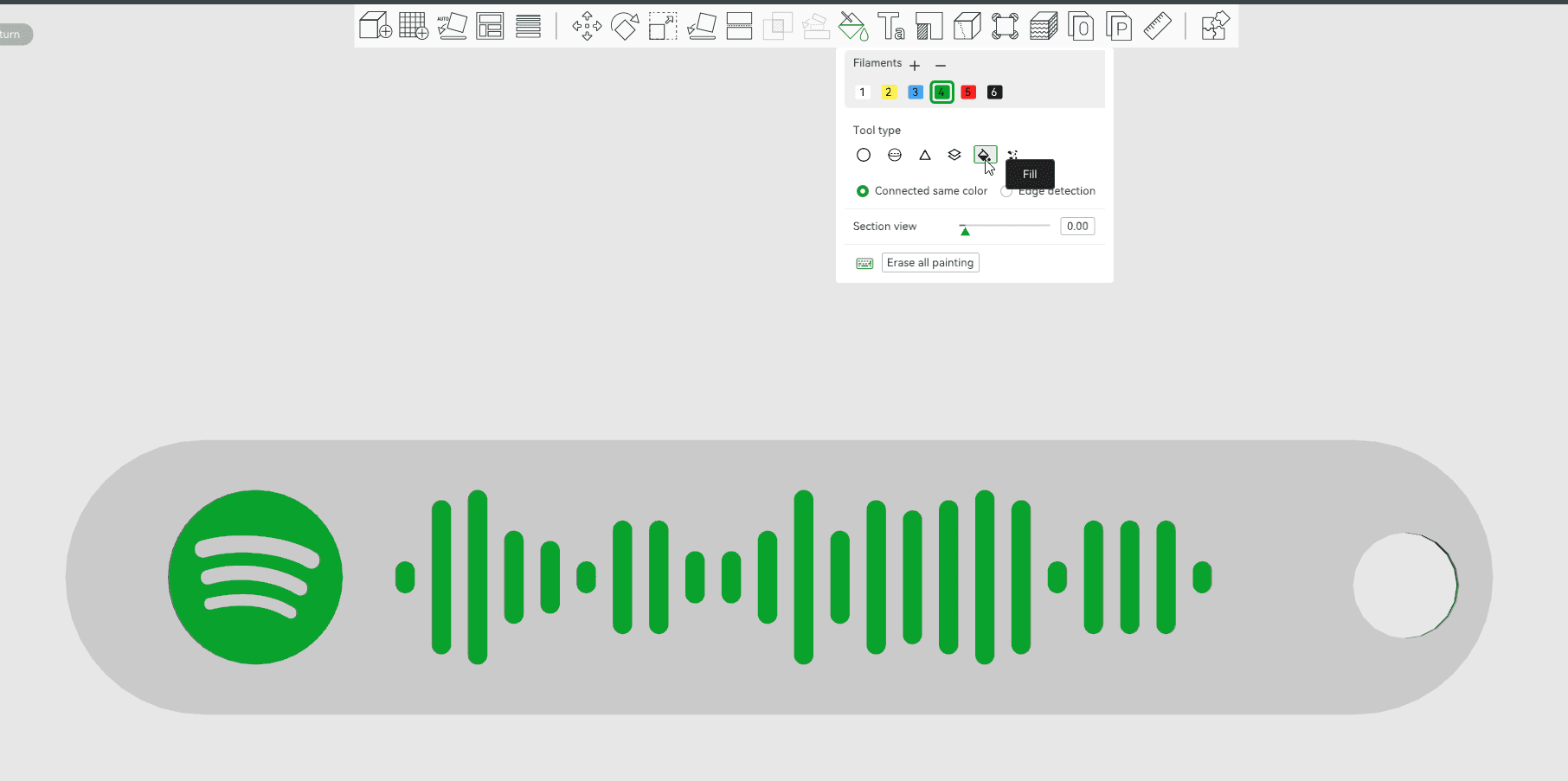
Open the STL in your slicer, assign your colors to objects, verify that the bars remain clean and readable at your intended print size, and then print a test piece. After printing, scan the result with the Spotify mobile app to confirm the code still works reliably.
Final Tips
The cleanest Spotify keychains usually keep the base simple, avoid over-decorating around the code bars, and use recessed details for a more integrated finish. If the first print does not scan well, increase contrast, enlarge the code area slightly, and retest before producing a final version.